 Products





Ready to get started?
No matter where you are on your CMS journey, we're here to help. Want more info or to see Glide Publishing Platform in action? We got you.
Book a demoAs content volumes grow, it gets harder to see what every team is working on. Content Queues in Glide CMS let you build live lists of your content by the filters you choose and see them all on one editorial workflow dashboard.
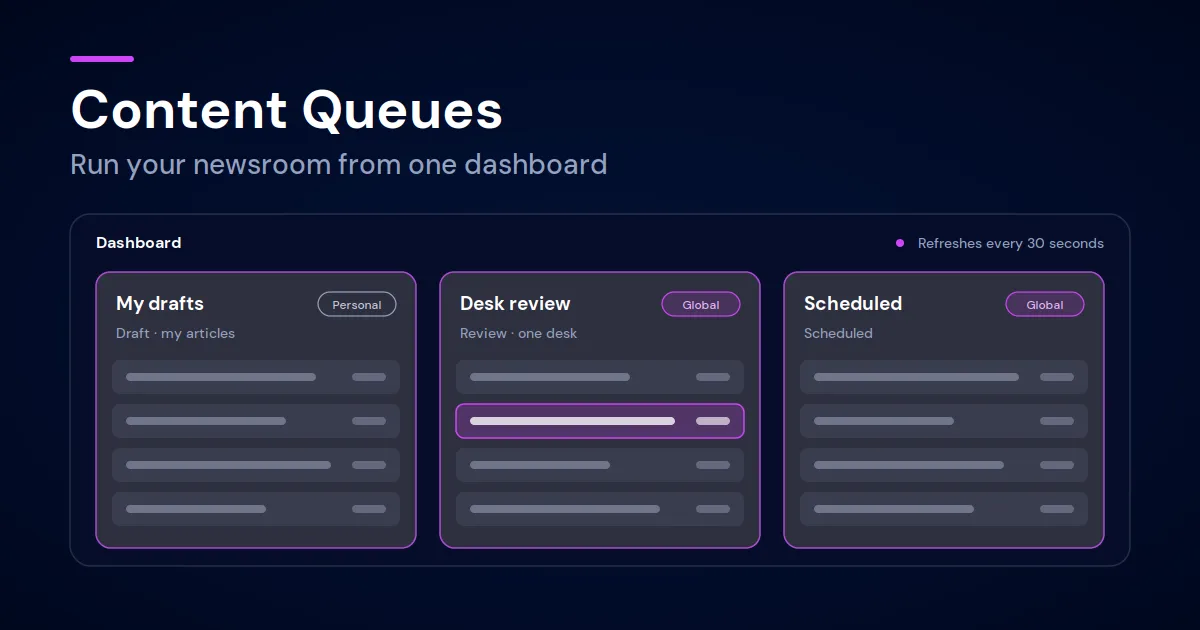
Picture a desk editor at the start of a shift. Some articles are still drafts, some wait for review, and others are scheduled for later that day.
With Content Queues, that editor opens one dashboard and sees each list side by side. A managing editor sees what is waiting for review, while the desk editor sees only their own drafts. A global queue gives the whole desk one shared picture, and a personal queue keeps individual focus. Because queues refresh as work moves, nobody has to ask what changed.
Glide CMS is a headless, API-first content management system for media, entertainment and sports. Glide CMS’s Content Queues features is a permission-based tool that gives editors a master view of content, sorted into queues they define and pinned to an editorial workflow dashboard.
This guide is for desk editors, managing editors, and the admins who set up roles.
Each queue starts with a name and a choice: personal or global, with each queue displaying 5, 10, or 25 articles.
To see only your own articles, set the byline filter to a built-in token that Glide CMS replaces with the logged-in editor’s author.
Filters can be combined in one queue:
| Queue | Filters |
| My drafts | Status: Draft. Author: The logged-in editor |
| Ready to publish | Status: Ready |
| Desk review | Status: Review |
| Scheduled | Status: Scheduled |
| Second edition | Content locale: One locale. Status: Draft |
A personal queue suits My drafts. Global queues suit the views a whole desk shares.
Every queue is either personal or global. Only its creator sees a personal queue. Everyone whose role has permission for content queues sees a global queue, and those users can add it to their own dashboards.
| Aspect | Personal | Global |
| Who can see it | Only its creator | Everyone whose role has permission |
| Who can create it | Users whose role allows content queues | Users whose role has the global permission |
Admins set which roles can see, create, and share queues with everyone. A role can also be set so that its users cannot see or create queues.
A user without the global permission can still create personal queues.
Each editor arranges their own dashboard: add queues, drag panels into order and resize them as you like.
Each editor arranges their own dashboard: add queues, drag panels into order and resize them.
| Settings | What it does |
| Display name | Renames a queue on the dashboard only. The name stays until you remove the panel and add it again. |
| Manage columns | Headline always shows. Drag the other columns into order, or hide them. |
| Refresh content queues | Updates the list every 30 seconds when changes occur. You can switch it off. |
| Highlight updates | Keeps updated articles highlighted until you select Clear Highlights. With the setting off, highlights fade after a few seconds. |
| Width and height | Resize each panel from its menu. |
| Queue limit | A dashboard holds up to twelve queues. |
Glide CMS highlights changes in the columns you have chosen to show, including newly added items.
A dashboard holds up to 12 queues, so each editor can choose which ones to watch.
To see content queues in your own editorial workflow, talk to a Glide product specialist.
Common questions about Glide CMS Content Queues
What are content queues in Glide CMS? Content queues are user-defined queues that collect articles matching the filter criteria you choose such as status, author, taxonomy and locale into panels on the dashboard.
How many articles does a queue show? Each queue shows 5, 10, or 25 items, chosen when the queue is created.
What is the difference between personal and global queues? Only its creator sees a personal queue. Everyone whose role has permission for content queues sees a global queue.
Can an editor see only their own articles? Yes. To see only your own articles, filter by your own byline: Glide CMS recognises the logged-in editor automatically.
Why can’t I see the content queues button? The button next to the dashboard appears only when the account has the feature enabled. A role can also be set so that its users cannot see queues.
Related articles:
No matter where you are on your CMS journey, we're here to help. Want more info or to see Glide Publishing Platform in action? We got you.
Book a demo
