 Products





Ready to get started?
No matter where you are on your CMS journey, we're here to help. Want more info or to see Glide Publishing Platform in action? We got you.
Book a demoPlace, target, and manage ad slots directly inside Glide CMS, with any ad stack and no developer time. Commercial teams change placements themselves, and updates go live the moment a template is saved.
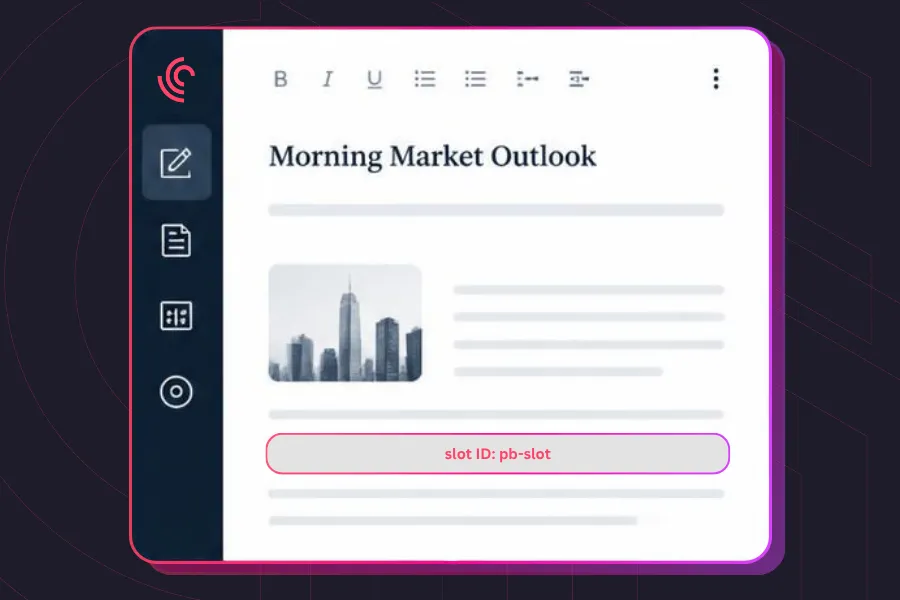
For most media site owners, moving or adding the ad slot containers which decide where ads sit on a web page is something managed from templates or application code. So placing a new one, or moving an existing one, usually requires a developer to edit any templates and redeploy the site. The commercial team who want the change can't do it themselves, and the time taken is as long as the release process takes, and adjusting a placement can start the cycle again. It can be exacerbated if a site uses more than one ad tech provider.
Glide's ad system moves those page-level decisions into the CMS, and means a commercial team can add an HTML snippet where the ad should go, and make the new or amended placement effective as soon as the template is saved and published, so no code change or deployment is needed.
The power of changing where ad placements are managed puts revenue teams nearer the front-end decisions. Importantly it doesn’t change how your ad stack runs. The ad server keeps managing demand, targeting rules, and trafficking, but now the page-level decisions around which slot goes where, on which device, sits in the CMS.
Adding a new ad placement is usually a development task. If a commercial team wants a new slot on the homepage, in most setups that means filing a ticket: describing the placement, specifying device targeting, waiting for a code change and a deployment, then checking it works. Adjusting the placement repeats the whole cycle.
That delay exists because the logic for rendering ads, targeting devices, and handling dynamic content lives in application code that editorial and commercial teams cannot reach. Glide moves those decisions to the people who understand the commercial strategy, without needing the people who understand the code. Setup happens once at site build; after that, a commercial team places and adjusts ads themselves, and changes take effect as soon as a template is saved.
The Glide ad system is a CMS-native way to place ads. Instead of writing code, a CMS team adds an HTML snippet with a container element to a template, and the front-end handles device targeting, duplicate management, and dynamic content detection.
It works with any ad stack. Google Ad Manager (GAM), Amazon Publisher Services (APS), Prebid, Aditude, or another provider all work, as long as the ad scripts and initialization layer are configured during site setup.
The ad rendering pipeline has three parts, each handling a different stage.
Placing an ad, then, is a matter of adding a ˂div> with the right ID to a template, and the pipeline does everything necessary after that.
Every ad container follows one ID format so the system can recognise it: pb-slot-˂site_name>_˂slot_type>
˂site_name> identifies the property, while ˂slot_type> identifies the kind of ad unit and, where relevant, the device it targets.
For a site called "test site", a desktop rectangle slot would be: pb-slot-testsite_rectangle_1
The number at the end distinguishes multiple instances of the same slot type on one page. The system can auto-increment these for dynamically loaded content.
| Placement | Slot ID example | Device |
| Rectangle | pb-slot-testsite_rectangle_1 | Desktop |
| Half-page | pb-slot-testsite_halfpage_desktop_1 | Desktop |
| Super leaderboard | pb-slot-testsite_super_leaderboard_1 | Desktop |
| Widget (desktop) | pb-slot-testsite_widget_desktop_1 | Desktop |
| MPU (desktop) | pb-slot-testsite_mpu_desktop_1 | Desktop |
| MPU (mobile) | pb-slot-testsite_mpu_mobile_1 | Mobile |
| Leaderboard (mobile) | pb-slot-testsite_leaderboard_mobile_1 | Mobile |
| Widget (mobile) | pb-slot-testsite_widget_mobile_1 | Mobile |
To add an ad placement, place an HTML snippet containing an ad unit with the right slot ID where the ad should appear:
html snippet content:
˂div id="pb-slot-testsite_rectangle_1">˂/div>
When the page loads, AdInitializer detects the new slot, checks whether it belongs on the current device, and requests the ad. If the slot duplicates one already on the page, the system renames it (2, 3, and so on) for slot types that support multiple instances. Nothing more is needed from the CMS team.
To add an ad to the homepage:
The ad renders in that position on the front-end straight away.
To control what shows on each device, the editor attaches a device identifier to the HTML element in the snippet, a class that marks the slot as mobile or desktop. The front-end reads that class and shows the slot only on the matching device.
The front-end removes ad slots that don't match the reader's viewport, so a CMS team can place both desktop and mobile slots in one template without worrying about the wrong ad showing. The breakpoint is 768px: slots render for viewports at or above it on desktop, and at 767px or below on mobile.
Desktop only:
Mobile only:
If a mobile MPU slot is present on a desktop page load, AdInitializer removes it before any ad request, so the reader never sees it and no impression is wasted.
Ads can be inserted automatically within article body content, positioned relative to paragraphs. This is set up entirely in the CMS template editor, with no code changes.
Configuration
Each entry defines a single in-article ad: which slot to use, which device it targets, and where it appears.
Slot ID identifies the ad unit, using the same naming format as every other placement.
Device sets whether the ad is for desktop or mobile. An ad configured for the wrong device is removed on the front-end, in line with the device targeting above.
After paragraph sets the insertion point. The ad appears after that paragraph number, so 1 places it after the first paragraph and 3 after the third.
After word (optional) adds a minimum word-count condition, so the ad only appears if the article is at least that long. This keeps ads out of very short articles where they would dominate. Set to 300, the ad renders only when the article has 300 words or more.
Repeat every (optional) goes on the final placement entry to create a recurring pattern. An ad placed after paragraph 6 with "Repeat every" set to 5 appears after paragraphs 6, 11, 16, 21, and so on to the end of the article.
The ad system also supports setups beyond standard page templates. These vary by implementation but are available where needed.
To see how Glide's ad system fits your setup, talk to us.
Does this only work with a specific ad provider? No. It works with any ad stack, Google Ad Manager (GAM), Amazon Publisher Services (APS), Prebid, Aditude, or another provider, as long as the ad scripts are configured during site setup.
What happens if I place a desktop ad slot on a mobile page by mistake? Nothing breaks. AdInitializer detects the viewport mismatch and removes the slot before any ad request, so there's no broken layout and no wasted impression.
Can I have multiple ads of the same type on one page? Yes, for slot types that support it, such as rectangles and MPUs. The system auto-increments the slot IDs to keep them unique.
Can I show an ad only on specific section pages? Yes. Place the HTML snippet in the template that section uses. Placement is controlled entirely by which templates contain the ad slot containers.
Can I change an ad placement without redeploying the site? Yes. Placements are managed in the CMS template editor. Changing a slot ID, moving a placement, or removing one takes effect as soon as you save the template.
Related articles:
No matter where you are on your CMS journey, we're here to help. Want more info or to see Glide Publishing Platform in action? We got you.
Book a demo
