 Products








Ready to get started?
No matter where you are on your CMS journey, we're here to help. Want more info or to see Glide Publishing Platform in action? We got you.
Book a demoGAIA, Glide CMS’s AI Assistant, gives editors AI help with drafting, summaries, and translation. Three controls decide where it runs: the account, the article type, and the role.
Picture a managing editor who gets the same questions every month: where exactly is AI allowed in our workflow? One desk wants drafting help, another wants summaries, and a third wants nothing at all.
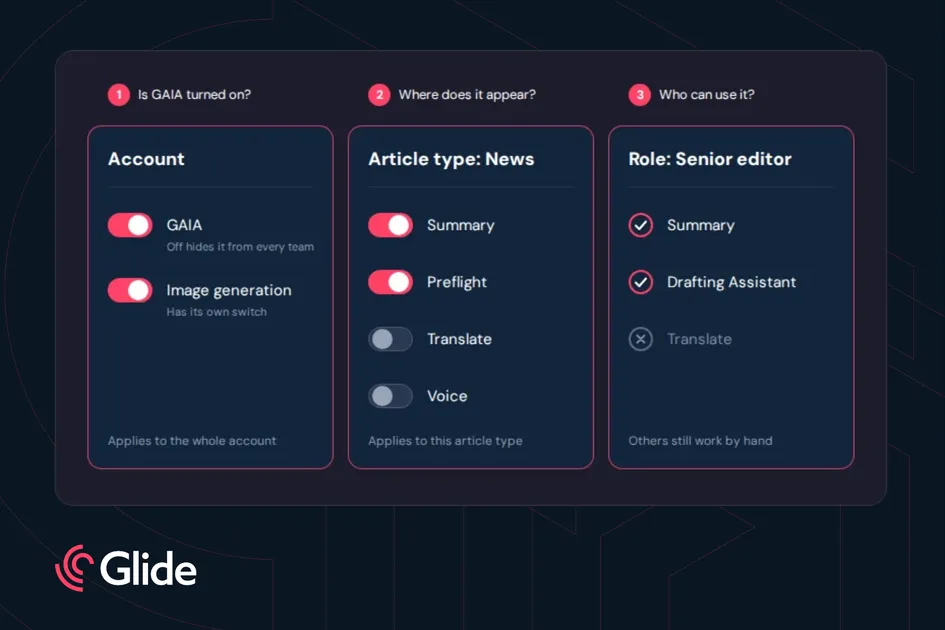
GAIA, is the AI toolset natively built into Glide CMS for AI-assisted authoring and editing. It covers drafting support, summaries, pre-publish checks, and translation as well as audio generation and image recognition and generation. Its AI controls work at three levels: the account, the article type, and the role so that an organisation can adopt desk by desk, with editors maintaining final control.
Caution about AI is reasonable in publishing, where trust, intellectual property, and accountability for what gets published all matter. Running on Amazon Bedrock, GAIA offers several models to choose from and keeps your data within your control so that it never enters a training set.
This guide is for editors-in-chief, managing editors and the admins who set up article types and roles.
One toggle in Settings turns GAIA on or off for the whole account. With it on, GAIA can be set up for articles and image generation. With it off, your teams can’t reach GAIA at all.
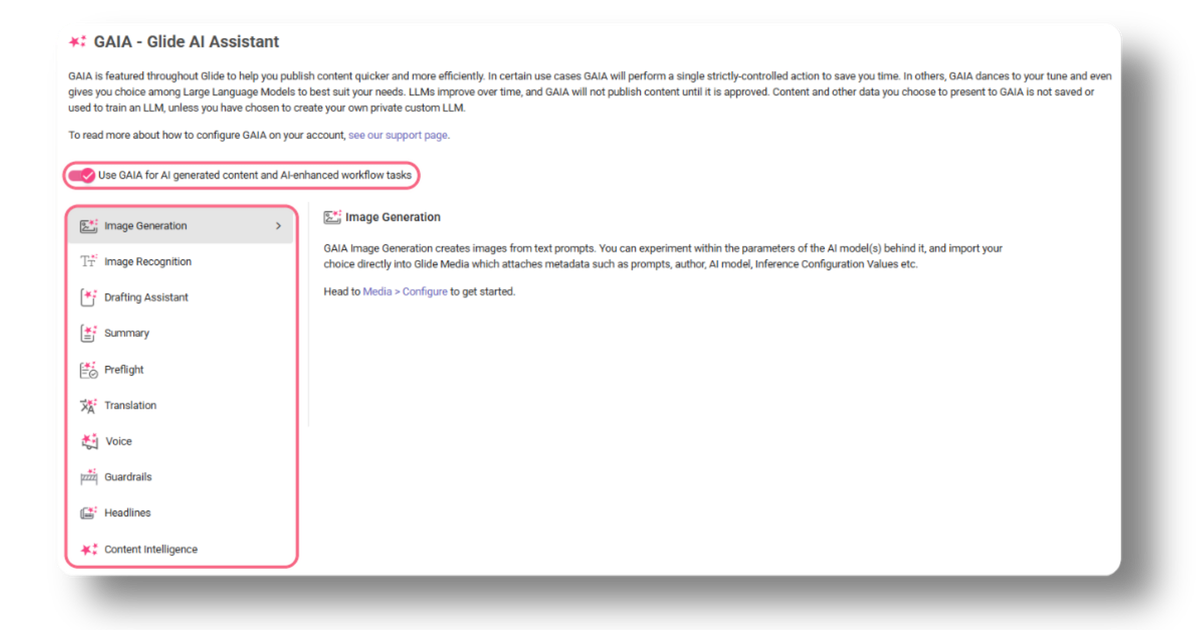
Six tools sit behind that toggle:
Image generation has its own switch, and with it off, editors still add images from the library or their device as usual.
The same switch also works as a quick stop if a team needs to pause AI across the account.
Once GAIA is on, you choose where it appears, down to individual article types.
Each article type has its own GAIA settings, with a toggle for tools such as Summary, Preflight, Translate, and Voice. You can add GAIA to as many article types as you want.
For example, a team can offer Summary and Preflight on news, Voice on long reads, and nothing on image galleries. GAIA appears only on the article types where you’ve turned it on.
Permissions decide who can use the tools. Each role has its own GAIA permissions for Summary, Drafting Assistant and Translate. An admin can give a role all three, some of them, or none.
A role without the Summary permission can still write a summary by hand. It just doesn't see the Generate button.
Every GAIA tool needs a model and an admin picks one from the list of available models. Each tool has its own model setting, so a team can match the model to the task and change it at any time. The list changes over time, and a tool with no model set can’t be used.
GAIA’s built in limits including:
Glide recommends that editors fact-check what GAIA drafts andreview every translation before publishing.
Here are some questions teams can use to help decide where to switch GAIA on:
In that same setup, on news, only senior editors get Drafting Assistant, and everyone else writes by hand.
A cautious start can be much smaller: switch GAIA on, choose one article type and one tool, and give one role access. A wider rollout can add Preflight to every text article type, Summary to all editors and Translate for an international desk. The setup can change as the team’s confidence grows.
AltChar, a video games new site with a three-person editorial team, turned GAIA on in Settings, chose where it would be used and set it up for each user or use case. Its editor, Semir Omerović, said the team liked that Summary draws only on text they have already written, calling it “a great safety net” and reporting that time to publish an article with a summary fell by 15 percent on average.
Three controls answer three questions: is AI on at all, where does it appear, and who can use it. The account switch sets the outer limit, article types decide where GAIA appears, and roles decide who gets the tools. Together they let a team start small and widen GAIA’s reach at its own pace.
Want to see how GAIA’s controls fit your editorial setup? Connect with a Glide product specialist to find out.
What is GAIA? GAIA is the AI toolset natively built into Glide CMS for AI-assisted authoring and editing. It includes tools for drafting support, summaries, pre-publish checks, and translation as well as audio and image generation.
Can I turn GAIA completely off? Yes. One toggle in Settings turns GAIA off for the whole account, and your teams can’t reach it.
Can I use GAIA on some article types and not others? Yes. Each article type has its own GAIA settings, so you can switch tools on for news and leave them off for image-led content.
Can I limit GAIA to certain people? Yes. Roles have separate permissions for Summary, Drafting Assistant and Translate, and an admin can grant all, some or none of them.
What happens if someone doesn’t have permission? They can still fill in a summary by hand. They just don’t see the Generate button.
Can I choose which AI model GAIA uses? Yes. Each tool needs a model chosen from a list, and a tool with no model set can’t be used.
Does GAIA publish anything on its own? No. Editors stay in charge of anything that gets published, and the Drafting Assistant can’t save or publish content at all.
Related articles:
No matter where you are on your CMS journey, we're here to help. Want more info or to see Glide Publishing Platform in action? We got you.
Book a demo
